
Your orders: history, receipt and reorder
In the Orders tab you see each order with its status and total, open the full receipt and order the same again with one tap.
How it works
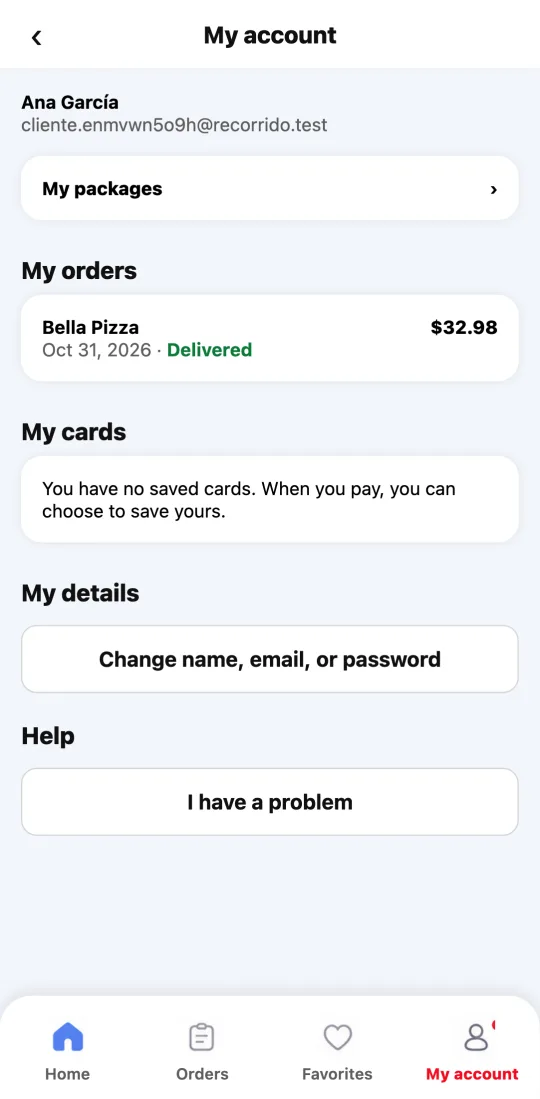
The Orders tab (bottom bar, second one) lists all your orders, newest first, with date, status and total. The ones in progress say “In progress”.
“See order and receipt” opens the order with the breakdown: food, delivery, service, tax (where it applies in your city), tip and total, plus tracking and rating.
“Reorder” builds your cart again with the same items, quantities and options, at today’s prices. If any is no longer available, we tell you which one and add the rest.
It works with stores too (grocery, pharmacy and more), including what you chose to do if an item is missing.
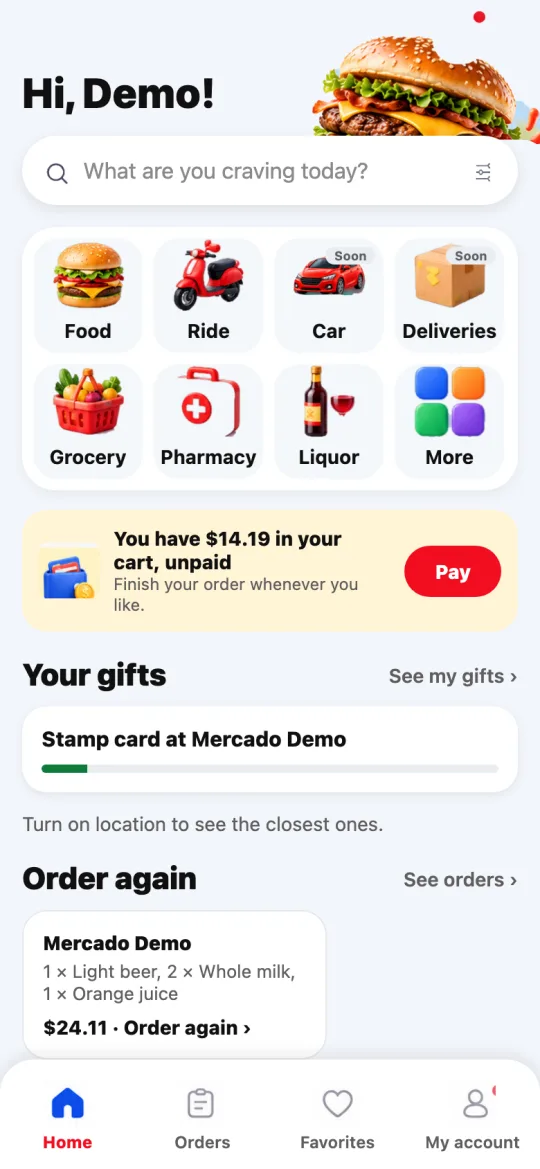
When an order is finished, its screen shows “Order again”, which does the same. On the home screen, the “Order again” row shows the last places you got an order from: one tap and it’s in your cart.
If you had another cart half done, we ask before replacing it.
Steps
- Tap Orders in the bottom bar.
- Tap “See order and receipt” or “Reorder”.
- If you reorder, review the cart and pay as usual.
This guide answers
- Where do I see my past orders?
- How do I order the same again?
- Where is the receipt?