
Your dashboard: how your restaurant is doing
Orders, sales, your payout, best sellers, your busiest hours, new and returning customers, your real kitchen time, and what customers think, at a glance.
How it works
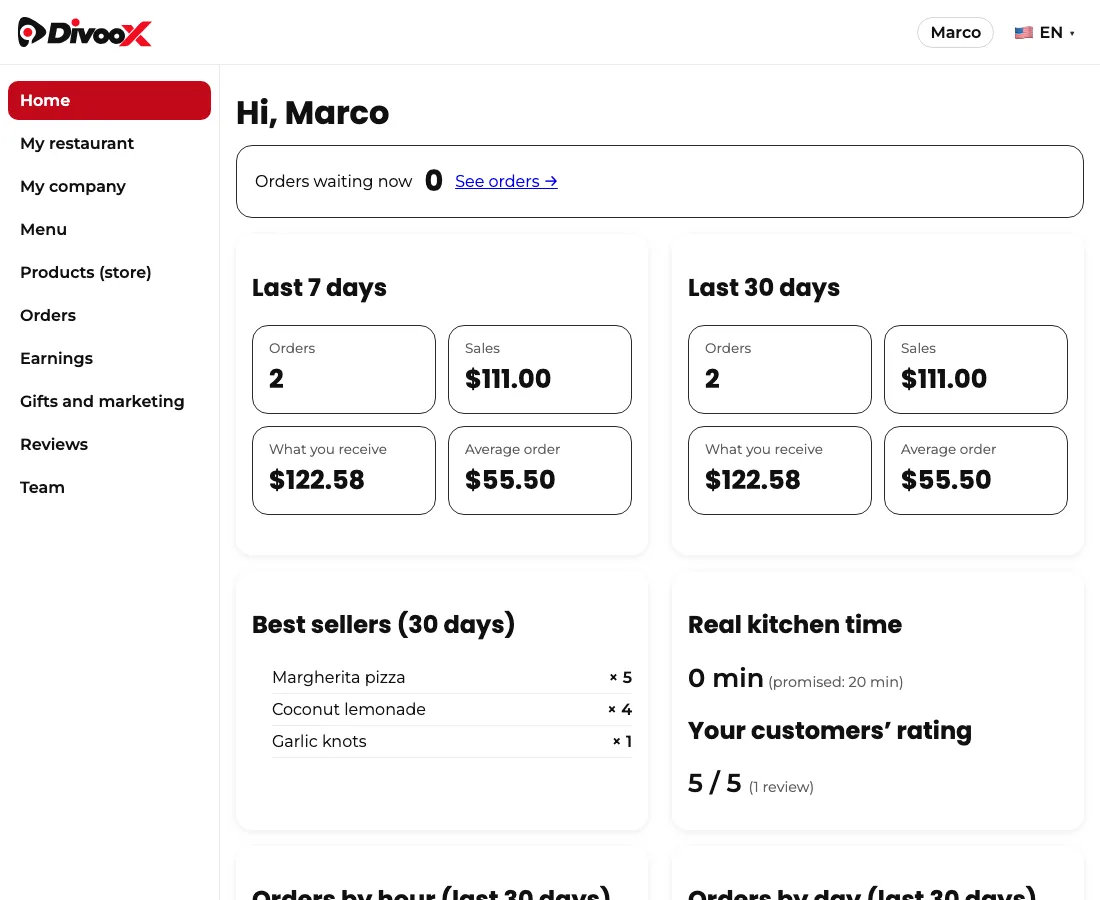
When you open your dashboard, the first thing you see is your overview. It’s designed so you know how business is going in ten seconds, without doing the math.
At the top, how many orders are waiting right now, with a direct link to them. Below, the last 7 and 30 days: orders, sales, what you receive after commission, and your average order.
Further down, your best-selling items and your real kitchen time compared with the time you promise when accepting. Cook faster than you promise and customers get their food sooner and rate you higher.
At the bottom, your busiest hours and days over the last 30 days, in your city’s time, so you know when to staff up. And your customers: how many are new, how many come back, and how many orders were canceled.
You also see how many orders had an issue (an item missing, wrong or damaged), what share of your orders went out without issues, and how much was refunded to customers this month. It’s the best clue for checking how bags are packed.
You see the same in the restaurant app, under Stats.
Steps
- Open your dashboard. The overview is under “Home.”
- If orders are waiting, tap “See orders” to handle them.
- Check your best sellers once a week: they’re the best guide for your promotions and gifts.
- Compare your real kitchen time with the promised time. If you’re always slower, promise a few more minutes when accepting: the traffic light and your customers will thank you.
This guide answers
- Where can I see how much I sold today?