
My route: delivering company packages with Divoox Driver
Companies assign or offer you package routes. You accept, load by scanning every package, follow the stops in order, deliver with a photo, PIN or signature, and bring back to the hub whatever couldn’t be delivered.
How it works
All of Divoox Flex is blue, the logistics color, so it never gets confused with a food order. During the route you have four views: Map (with All, Apartments and Priority filters), List (each delivered stop shows the time), Timeline and Summary (what you have left, and how many stops are pending, done or with problems).
To get to a stop, tap “Navigate” and pick your maps app: Apple Maps, Google Maps or Waze. When you arrive, tap “I’ve parked” and go on with the delivery.
To deliver you must be within 200 meters of the address. If you’re farther away, the app tells you how many meters and won’t let you finish. If the address is wrong, message support from the same stop.
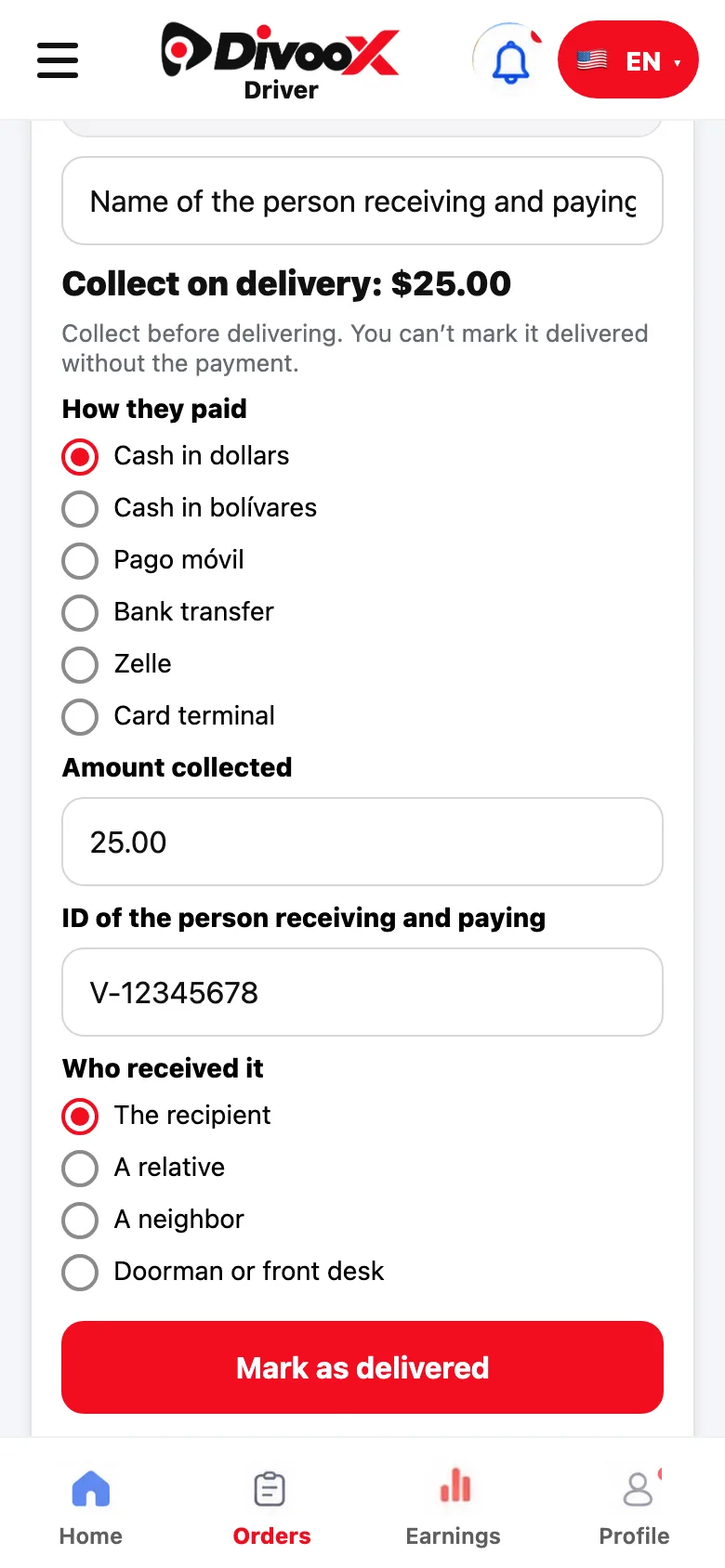
When you deliver, choose where you left the package: with the person or someone at home, receptionist or doorman, front door or porch, secure mailbox, or another safe place. Check the photo (the spot is clear and no people show) and use “Slide to finish”: you finish by sliding, not with a tap, so you don’t close it by mistake.
If there was an earlier delivery at the same address, the stop shows that delivery’s photo (“Earlier delivery at this door”) so you recognize the place.
If you work for a delivery company, it invites you: you get a text or email (or they send you the link by WhatsApp). Install Divoox Driver, sign in with that same phone or email and, on the home screen, tap “Accept” on your company’s invitation. If you already use that phone or email in another Divoox account, create your Driver account with different ones and tap “Did a company invite you? Paste its link.”
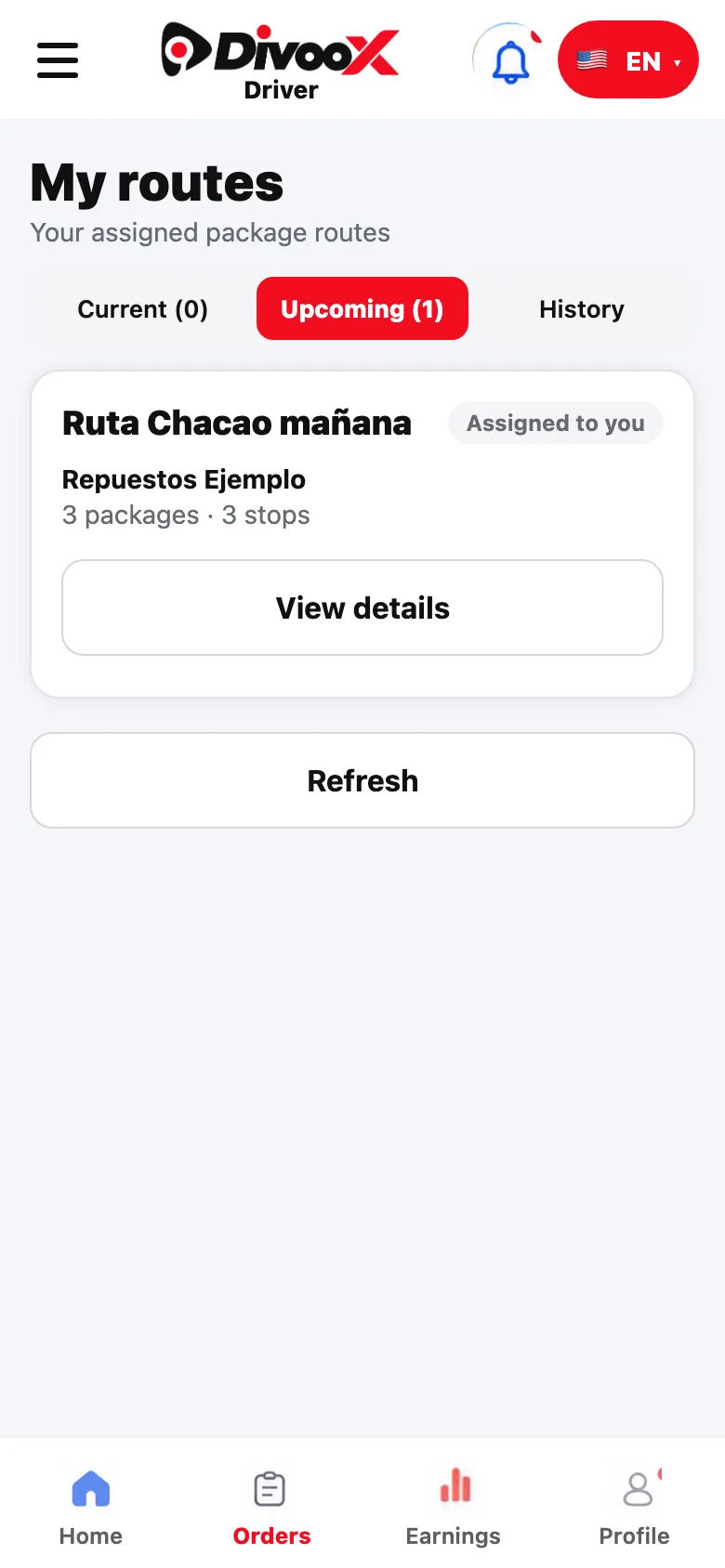
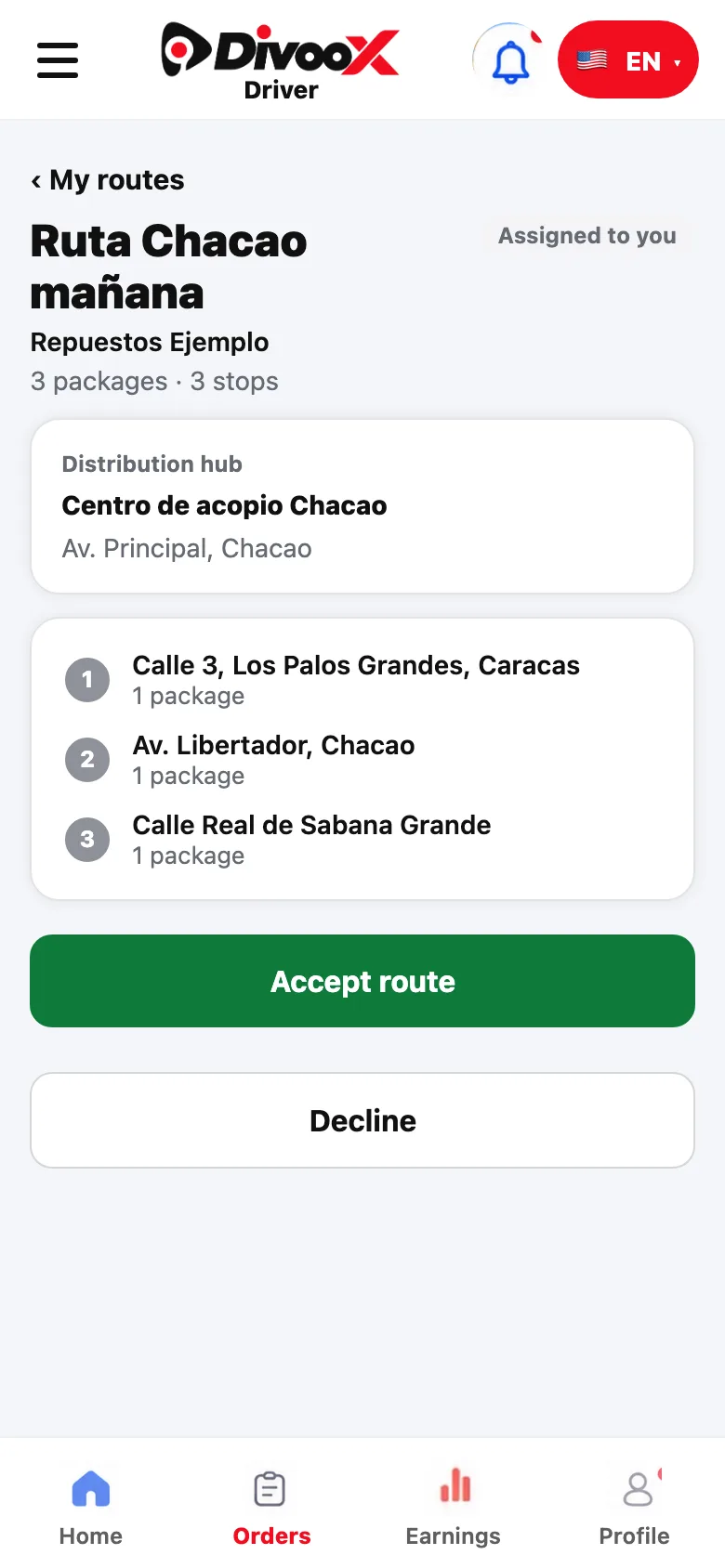
In the Divoox Driver menu, open “My route (packages)”. There you see the routes a company you work with assigned to you and the ones offered to you (with the time the offer expires). While doing a route you get no other routes or food orders.
Distances show in miles or kilometers, whichever you prefer: in your profile, under “Distances in,” tap “Miles” or “Kilometers.” It applies to the whole app: offers, My route and alerts.
When you have a route, the app’s home screen shows it in a blue card with “Continue route.” Inside the route the screen is dark and uses the full space, so it’s easy on your eyes during long shifts. In the list, stops are connected by a line: each time you deliver one, the line and the number turn green with the delivery time, and the next stop is highlighted.
We notify your phone when a company offers or assigns you a route, when your offer is about to expire, if it is withdrawn or canceled, and when you are authorized to retry a delivery. Tap the notification and that route opens directly.
After accepting, go to the company’s hub and tap “I’m at the hub”. Scan every package with the camera (the label’s QR code and barcode both work) or type its code. If a package isn’t there, mark it “Not at the hub”. When everything is loaded, tap “Start the route”.
Go through the stops in the order the company set. Each one shows the address, instructions, number of packages and time window. “Navigate” opens your maps app. The recipient’s details appear once you’re on route.
To deliver, the app tells you what the company requires: a photo, the PIN the recipient gives you, or their signature with a finger. If allowed, you can deliver contactless by leaving the package at the door with a photo.
If a delivery can’t be made, tap “Couldn’t deliver”, pick the reason and the next step. If the company allows it, you can retry later on the same route.
When you finish, tap “Finish deliveries and go back to the hub”: you’ll see the list of what you’re returning. At the hub, scan each package as you drop it off, then “Close the route”. You’ll see your route summary.
No signal is fine: what you do is saved on the phone and sent automatically when you’re back online, without duplicates. Meanwhile the app tells you it’s pending confirmation.
Steps
- Open the menu, go to “My route (packages)” and accept the route.
- At the hub, scan every package and tap “Start the route”.
- At each stop, deliver with the proof the company requires or report the exception.
- Go back to the hub, scan what you return and close the route.
This guide answers
- Where do I see package routes?
- How do I load the packages?
- What do I do if I can’t deliver a package?
- What happens if I lose signal?